SIGN IN YOUR ACCOUNT TO HAVE ACCESS TO DIFFERENT FEATURES

Login with Google
FORGOT YOUR PASSWORD?

FORGOT YOUR DETAILS?

AAH, WAIT, I REMEMBER NOW!
QUESTIONS? CALL: 865-637-8986
  • LOGIN

SimpleIndex

  • Solutions
  • Features
  • Pricing
  • Download
  • Docs & Support
  • Store
  • My Account
  • MY CART
    No products in cart.

Mobile Document Capture via Google Drive & SimpleIndex

Overview

While SimpleIndex operates as a desktop application, mobile team members and field operators often need to process physical documents when away from a traditional desktop scanner.

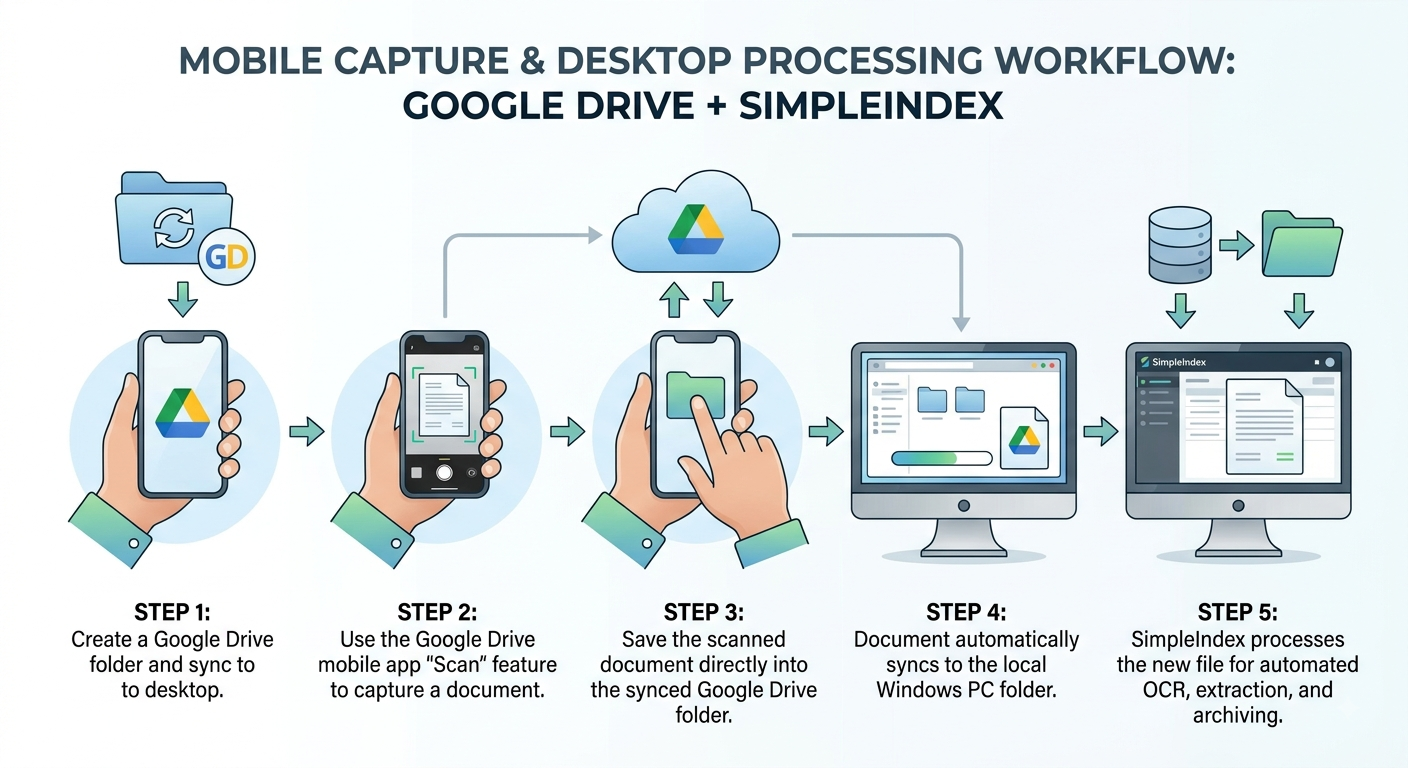
By integrating the mobile scanning capabilities of Google Drive with SimpleIndex, organizations can convert any smartphone into a mobile capture workstation. Documents scanned on a mobile device automatically sync to a designated folder on the local workstation, where SimpleIndex picks them up for automated OCR, index extraction, and backend file routing.

Prerequisites

  • Google Drive for Desktop installed and configured on the processing PC.

  • Google Drive Mobile App installed on an Android or iOS device.

  • SimpleIndex installed on the processing PC.

Step-by-Step Configuration

Step 1: Establish the Cloud-to-Desktop Sync Folder

  1. On your Windows desktop, ensure Google Drive for Desktop is running.

  2. Open Windows File Explorer and navigate to your synced Google Drive directory.

  3. Create a dedicated folder for incoming mobile documents (e.g., G:\My_Drive\SimpleIndex_Mobile_Input).

Step 2: Configure the SimpleIndex Job

  1. Open SimpleIndex and launch the Job Builder.

  2. Under the Input settings:

    • Set the Input Folder to point directly to the local Google Drive folder created in Step 1.

    • Enable options to delete or archive files post-processing to prevent duplicate indexing.

  3. Configure your desired document processing settings (e.g., OCR recognition, zonal extraction, database lookup, and output folder destinations).

  4. Save the configuration.


Mobile Document Capture via Google Drive & SimpleIndex

Step 3: Capture Documents via the Google Drive Mobile App

  1. Open the Google Drive App on your smartphone.

  2. Tap the + (Create) button and select Scan (or use the dedicated Camera/Scan shortcut).

  3. Frame the document. Google Drive will automatically handle crop detection, color cleanup, and perspective adjustments.

  4. Convert multi-page documents into a single PDF if required, then tap Save.

  5. Save the resulting PDF directly into the dedicated SimpleIndex Input folder established in Step 1.

Step 4: Automated Desktop Processing

Once uploaded via mobile, Google Drive automatically syncs the file down to the local Windows directory within seconds.

  • If running SimpleIndex in Unattended or Service Mode, the document will automatically be read, indexed, and processed without user intervention.

  • If running manually, the user simply launches the preset SimpleIndex job to run the batch.


Key Business Benefits

  • Zero Additional Software Cost: Utilizes existing infrastructure and native apps.

  • Automated Image Cleanup: Google Drive’s native mobile scanner optimizes images prior to OCR processing.

  • Real-Time Field-to-Office Pipeline: Field agents can upload invoices, receipts, or delivery proofs that immediately trigger back-office automated workflows.

1-Click Processing, Database, Document Automation, Document Capture Solution, Document Imaging, Document Management Software, OCR, Office PDF Text Processing, offline OCR, on-prem OCR, on-site OCR, One-time payment OCR, PDF Bookmarking, Scanning Software, Self-hosted OCR, Subscription free OCR, Sunshine OCR, TWAIN, TWAIN & ISIS Scanning

Search

Connect with Us!


What is 7+4?


Search Knowledge Base

Recent KB Articles

  • Silent Installation Instructions
  • How much do Simple Software products cost?
  • The 'Microsoft.ACE.OLEDB.12.0' provider is not registered on the local machine.
  • Enable License Log
  • Change License Files Path
  • License Activation Instructions for Simple Software Products
  • What are SimpleIndex Specifications?
  • On what versions of Windows does SimpleIndex run?

Feature Cloud

Aztec and QR Code</li> <li>Recognize 30 different 1D barcode formatsCode 39 Bar Code Printing Batch Scanning AI Document Processing Barcode Recognition Software accessability a generic barcode coversheet can be used to separate the scanned images into multi-page files Bar Code Scanning Bar Codes Automatic Data Capture Business Process Automation Barcode Reading Software Bates Numbering Software 2 of 5 Automatic PDF Separation Barcode OCR Archive Email to PDF 1-Click Processing Automatic Indexing Software Barcode Printing
SimpleIndex

On-premise document capture and indexing. Buy it once, run it on your own hardware.

865-637-8986

Newsletter

A few times a year. Unsubscribe any time.

Thanks. Watch for a confirmation email.

Product

  • Pricing
  • Store
  • Edition and pricing sheet (PDF)
  • Handwriting recognition
  • AI and SimpleIndex
  • Local / on-premise AI
  • Amazon Textract OCR/ICR
  • Zone OCR and Dynamic OCR
  • Barcode recognition
  • Document classification
  • AP to QuickBooks with RPA
  • SimpleInvoice
  • Compare with other solutions
  • Video demos

Support

  • Getting started
  • How to scan documents
  • Barcode scanning guide
  • Wiki
  • Knowledge base
  • SimpleIndex University
  • Release notes
  • AI Job Assistant
  • Upgrades

Company

  • Authorized dealers
  • Become a dealer
  • Register an account
  • Cookie preferences

© 2026 Meta Enterprises, LLC | Knoxville, Tennessee | A Family Owned Company

© 2026 SimpleSoftware | Consulting Services in the Field of Software as a Service

Contact Privacy Policy
TOP
SimpleIndex
Manage Cookie Consent
We use cookies to optimize our website and our service.
Functional cookies Always active
The technical storage or access is strictly necessary for the legitimate purpose of enabling the use of a specific service explicitly requested by the subscriber or user, or for the sole purpose of carrying out the transmission of a communication over an electronic communications network.
Preferences
The technical storage or access is necessary for the legitimate purpose of storing preferences that are not requested by the subscriber or user.
Statistics
The technical storage or access that is used exclusively for statistical purposes. The technical storage or access that is used exclusively for anonymous statistical purposes. Without a subpoena, voluntary compliance on the part of your Internet Service Provider, or additional records from a third party, information stored or retrieved for this purpose alone cannot usually be used to identify you.
Marketing
The technical storage or access is required to create user profiles to send advertising, or to track the user on a website or across several websites for similar marketing purposes.
  • Manage options
  • Manage services
  • Manage {vendor_count} vendors
  • Read more about these purposes
View preferences
  • {title}
  • {title}
  • {title}
});