
SIGN IN YOUR ACCOUNT TO HAVE ACCESS TO DIFFERENT FEATURES


CREATE AN ACCOUNT FORGOT YOUR PASSWORD?

FORGOT YOUR DETAILS?

AAH, WAIT, I REMEMBER NOW!

CREATE ACCOUNT

ALREADY HAVE AN ACCOUNT?


QUESTIONS? CALL: 865-637-8986
  • SIGN UP
  • LOGIN

SimpleIndex

  • Solutions
  • Features
  • Pricing
  • Download
  • Docs & Support
  • My Account
  • MY CART
    No products in cart.
Monday, 09 November 2026 / Published in Newsletter

SimpleIndex Tips & Tricks – File Every Page by the Number on It

File Every Page by the Number on It

Shop floor edition: packing slips, mill certs and travelers

Every business has one number that ties its paper together. In a plant it is the PO number on the packing slip, the heat number on the mill test report and the work order number on the traveler. In an office it is an invoice, claim or case number. Once SimpleIndex finds that number on the page, it names the file, picks the folder and passes the number on to your other systems, without anyone typing it.

Your ERP runs the plant, but the proof still arrives on paper. Someone scans it, names it and files it, or it sits in a drawer until an auditor or a customer asks for it. Here is how SimpleIndex handles that paper, with a sample delivery from our new manufacturing page.


One delivery, start to finish

A truck arrives with a packing slip, mill test reports for two heats and a certificate of conformance. Receiving puts the inspection sheet on top and scans the stack.

  1. SimpleIndex tells the documents apart by their titles.
  2. It finds the PO number wherever the supplier printed it.
  3. It reads the heat number and grade from each mill test report.
  4. It saves each document as a searchable PDF in the PO’s folder and names each mill cert by its heat, for example Receiving\4500031702\MTR_8M2907.pdf.
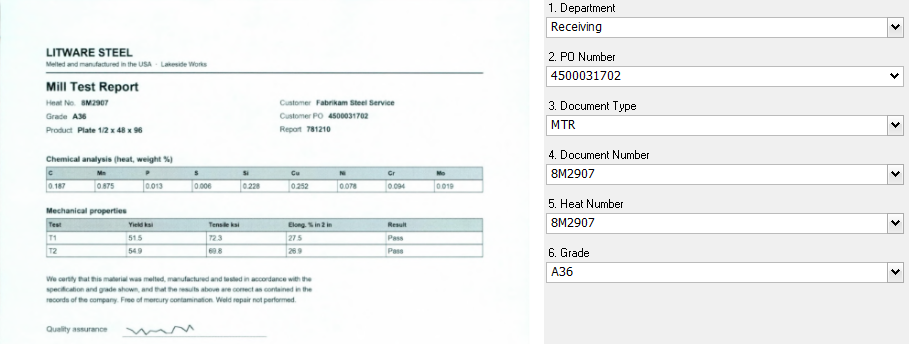
Sample mill test report with heat number 8M2907, grade A36 and PO 4500031702 read into SimpleIndex index fields
A sample mill test report as SimpleIndex read it: PO, document type, heat number and grade

When the shop needs the cert for heat 8M2907, it finds it by typing the heat number. When purchasing opens the PO folder, the whole delivery is there.


Three ways to find the number

  • By pattern, anywhere on the page: every supplier prints the PO number somewhere different. A pattern such as “45 followed by eight digits” finds it wherever it is. This is the one to use for documents from many senders: packing slips, vendor invoices, claims.
  • By zone: when you know the layout, draw a box around the field. Each customer sends POs in its own layout, so each layout gets its own zones for the PO number, part number, price and date.
  • By barcode: print the work order number as a barcode on the traveler. SimpleIndex reads it and files the traveler, and every inspection sheet scanned behind it, in that job’s folder. Barcodes are the most reliable of the three, and barcode reading works in SimpleIndex Standard.
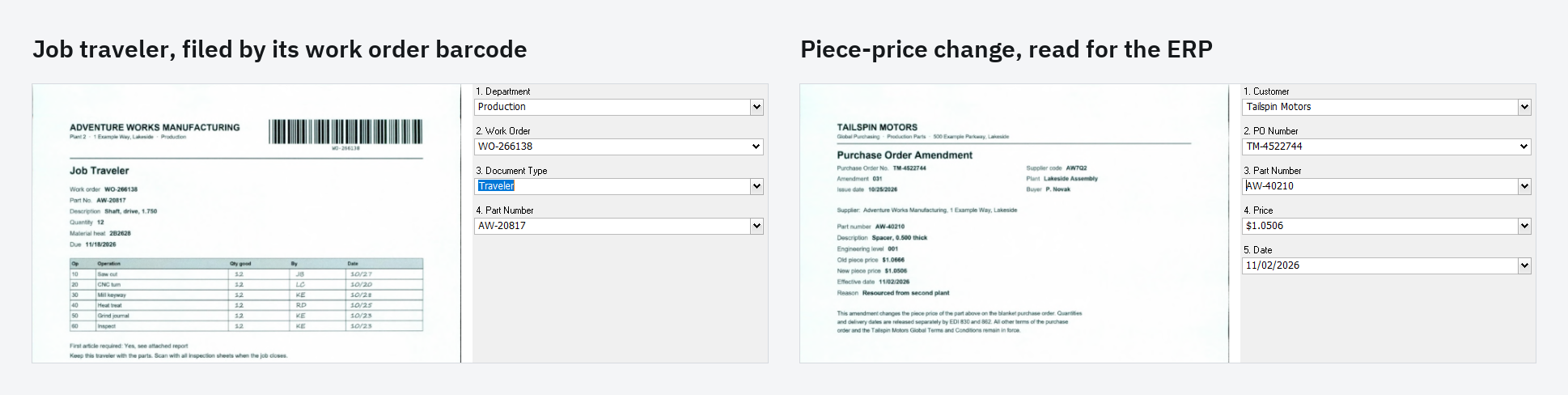
Sample job traveler filed by its work order barcode, and a sample customer piece-price change read for the ERP
Barcode and zones: a job traveler filed by its work order barcode, and a customer piece-price change read for the ERP

Five tips from our own test runs

We printed, scanned and processed sample paperwork for the manufacturing page. These are the things that tripped us up, so they don’t trip you up.

  1. Write the pattern tightly: “45 followed by exactly eight digits” won’t catch a phone number or a date. “Any number after PO” will. OCR often reads a colon as a full stop, so let the pattern accept either one after a label.
  2. Check how OCR reads labels set in two columns: when a form prints all the labels in one column and all the values in another, full-page OCR can return every label first and every value after. If a value can’t be found next to its label, use a zone for it.
  3. Make document-type rules exclude each other: our inspection sheet mentions the certificate of conformance, so it matched both rules. Write each rule so it can only match one type, rather than relying on the order of the list.
  4. Keep the file path out of full-text matches: SimpleIndex reads the file’s folder path and file name along with the page text. In our test, a folder called “Job Travelers” made every page match the Job Traveler rule. To make a full-text match field skip the path and file name, put 1 as that field’s Y coordinate.
  5. Let a miss stop on screen: one of our mill certs had a smudged heat number on purpose. Instead of guessing, SimpleIndex stopped on that page for the clerk to type the number.

Every value read is also written to the index log, page by page, so your ERP or quality system can import it.


See it on your own paperwork

The manufacturing page follows the whole delivery with screenshots, plus travelers, customer POs and quality records.

Send us one delivery’s paperwork: a packing slip, its mill certs and a traveler, or ten sample pages, with anything confidential blacked out. We build a job for them and show you the result on a 20-minute call.

Send sample pages to your SimpleIndex representative or download SimpleIndex 12 today, and see how we can file your plant’s paperwork by the numbers already printed on it!

  • Tweet

Search

Connect with Us!


What is 7+4?


Search Knowledge Base

Popular KB Articles

  • License Site Update v9.2.50 and Earlier
  • License Activation Instructions for Simple Software Products
  • Language Pack for Standard/Tesseract OCR
  • How to test if TWAIN drivers work properly?
  • The 'Microsoft.ACE.OLEDB.12.0' provider is not registered on the local machine.
  • How much do Simple Software products cost?
  • I finished scanning and found a page that did not get scanned or was scanned incorrectly. How can I correct this?
  • How to test if TWAIN/ISIS drivers work properly?

Feature Cloud

Barcode Reading Software 1-Click Processing Bar Code Scanning AI Document Processing Archive & Convert Email to PDF Automatic Data Capture AI Document Analysis Accounts Payable Automation Barcode Recognition Software Azure Document Intelligence ABBYY FineReader 2 of 5 Barcode Printing (Bar Code Printing) Automatic Indexing Software Amazon Textract Bar Codes AI Job Assistant Barcode OCR Automatic PDF Separation Batch Scanning
SimpleIndex

On-premise document capture and indexing. Buy it once, run it on your own hardware.

865-637-8986

Newsletter

A few times a year. Unsubscribe any time.

Thanks. Watch for a confirmation email.

Buy

  • Pricing
  • Store
  • Edition and pricing sheet (PDF)
  • Compare all editions
  • Compare with other solutions
  • On-premise vs. cloud costs
  • Video demos
  • Partners and resellers

Features

  • Document capture
  • OCR software (Zone & Dynamic)
  • Batch OCR
  • TWAIN & ISIS scanning
  • PDF & Office text parsing
  • PDF form filling
  • Handwriting & ICR
  • OMR (mark recognition)
  • Forms processing
  • Barcode recognition
  • Database integration
  • Document classification
  • Image clean-up
  • Bates stamping
  • Amazon Textract
  • AI and LLM OCR

Solutions

  • Healthcare
  • Legal
  • Financial services
  • Education
  • Transportation
  • Casinos and gaming
  • Manufacturing and distribution
  • Government and public sector
  • AP automation & QuickBooks
  • SimpleInvoice
  • Local / on-premise AI

Support

  • Getting started
  • How to scan documents
  • Barcode scanning guide
  • Wiki
  • Knowledge base
  • SimpleIndex University
  • Release notes
  • AI Job Assistant
  • Upgrades
  • Check your license
  • Log in
  • Register an account

© 2026 Meta Enterprises, LLC | Knoxville, Tennessee | A Family Owned Company

© 2026 SimpleSoftware | Consulting Services in the Field of Software as a Service

Contact Privacy Policy Cookie preferences
TOP
SimpleIndex
Manage Cookie Consent
We use cookies to optimize our website and our service.
Functional cookies Always active
The technical storage or access is strictly necessary for the legitimate purpose of enabling the use of a specific service explicitly requested by the subscriber or user, or for the sole purpose of carrying out the transmission of a communication over an electronic communications network.
Preferences
The technical storage or access is necessary for the legitimate purpose of storing preferences that are not requested by the subscriber or user.
Statistics
The technical storage or access that is used exclusively for statistical purposes. The technical storage or access that is used exclusively for anonymous statistical purposes. Without a subpoena, voluntary compliance on the part of your Internet Service Provider, or additional records from a third party, information stored or retrieved for this purpose alone cannot usually be used to identify you.
Marketing
The technical storage or access is required to create user profiles to send advertising, or to track the user on a website or across several websites for similar marketing purposes.
  • Manage options
  • Manage services
  • Manage {vendor_count} vendors
  • Read more about these purposes
View preferences
  • {title}
  • {title}
  • {title}